


| Bookmark Name | Actions |
|---|
Dashboard Screen
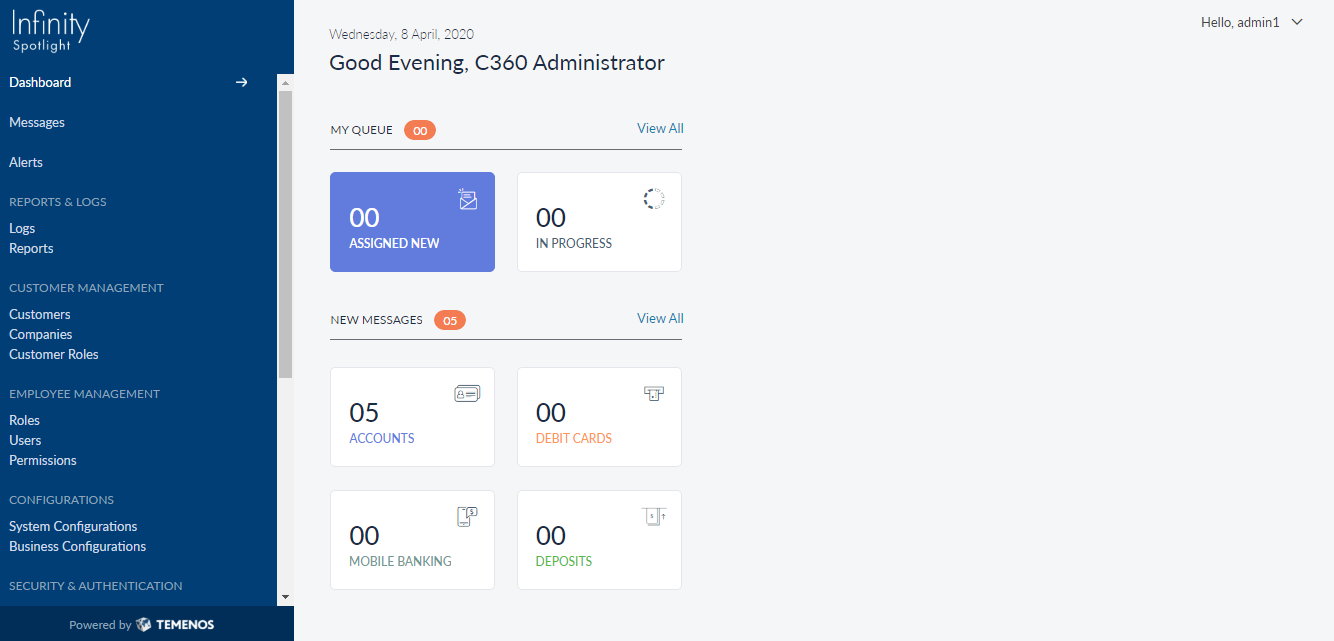
After successfully signing in, the application displays the dashboard - the default landing page of the application. The app displays the summary of the information relevant to the logged in admin user. The features available to you in the app depends on your role and permissions associated with the role.
In the current app version, the dashboard displays two standard widgets for all users.
- Messages (My Queue and New Messages)
- Alerts (Customer and Employee)
 Click here to view the various icons used on the dashboard and their description
| Icon | Description |
|---|---|
| General Banking |
| Assign New |
| Accounts |
| ATM |
| Credit Card |
| Debit Card |
| Incorrect Debit or Credit card charges |
| Loans |
| Deposit |
| In Progress |
| Online Banking |
| High Priority |
| Low Priority |
| Medium Priority |
| Mobile Banking |
Messages (My Queue and New Messages)
My Queue displays the total number of messages assigned to the logged in admin user. The count includes number of new and in progress messages. Click View All to view all the messages available under My Queue tab in the Messages module. New messages displays the total number of new messages received by the bank or credit union. It also displays the top four message categories with the maximum number of new messages for which the action has not been taken. Click View all to get the complete list of messages available in the New tab in Messages module.
Alerts
The Alerts widget provide the bank or credit union with a means to communicate with all the admin users within the application. Each alert in this widget has a tag, priority and date associated with. The tag indicates the alert type. Priority is indicated by an icon next to the alert subject. The date refers to when this alert was posted.
Two types of alerts are available in this widget:
- Employee Alerts - These type of alerts are related to bank employees and helps the admin user to stay up to date on the tasks that needs to be executed.
- Customer Alerts - These type of alerts are messages or promotions that the admin user should be aware of while interacting with each customer. These alerts also helps the admin user to solve customer queries.
You can filter the alerts with the help of (image). Select any of the importance flag (High, Medium and Low) and apply the changes. The required alerts are displayed automatically.
In Infinity Spotlight application, the alerts are fetched directly from the database. There is no UI available for creating these alerts in the application in this version.
Supported Languages and Formats
You can change the language from your browser settings and re-login into the Spotlight application after you change the language.
The application supports five European languages - UK English, German, Spanish, and French. The default selected language is US English. When you select any language, the application automatically changes the language, currency format, date format, and number format to match with the geographical location of the selected language.
Here is the list of languages and their corresponding formats:
| Language | Currency Format | Date Format | Number Format | Phone Number Format |
|---|---|---|---|---|
| US English | USD | mm-dd-yyyy | 4,294,967,295.00 | [+Code] [Number] X [Extension] |
| UK English | GBP | dd/mm/yyyy | 4,294,967,295.00 | [+Code] [Number] X [Extension] |
| German | EURO | yyyy-mm-dd | 4 294 967.295,000 | [+Code] [Number] X [Extension] |
| Spanish | EURO | dd/mm/yyyy | 4.294.967.295,000 | [+Code] [Number] X [Extension] |
| French | EURO | dd/mm/yyyy | 4 294 967 295,000 | [+Code] [Number] X [Extension] |
Add Bookmark
save your best linksView Bookmarks
Visit your best links BACK
BACK


Are you sure you want to log-off?